File Manager: projects, files, and the Dataset
Use this guide to open a project, find receiver-log files, choose which files belong in the Dataset, apply those choices, or repair a Dataset that cannot open normally.
Quick start: build your first Dataset
Use this path when you have a folder containing supported Fathom CSV receiver logs.
Before you start
- Install and launch the desktop application.
- Choose the folder that will contain the study files and ReceiverLogs project state.
- Put receiver-log CSV files inside that folder but outside dot-prefixed folders and
ReceiverLogs.project. - Do not create
ReceiverLogs.projectyourself.
Create the project and Dataset
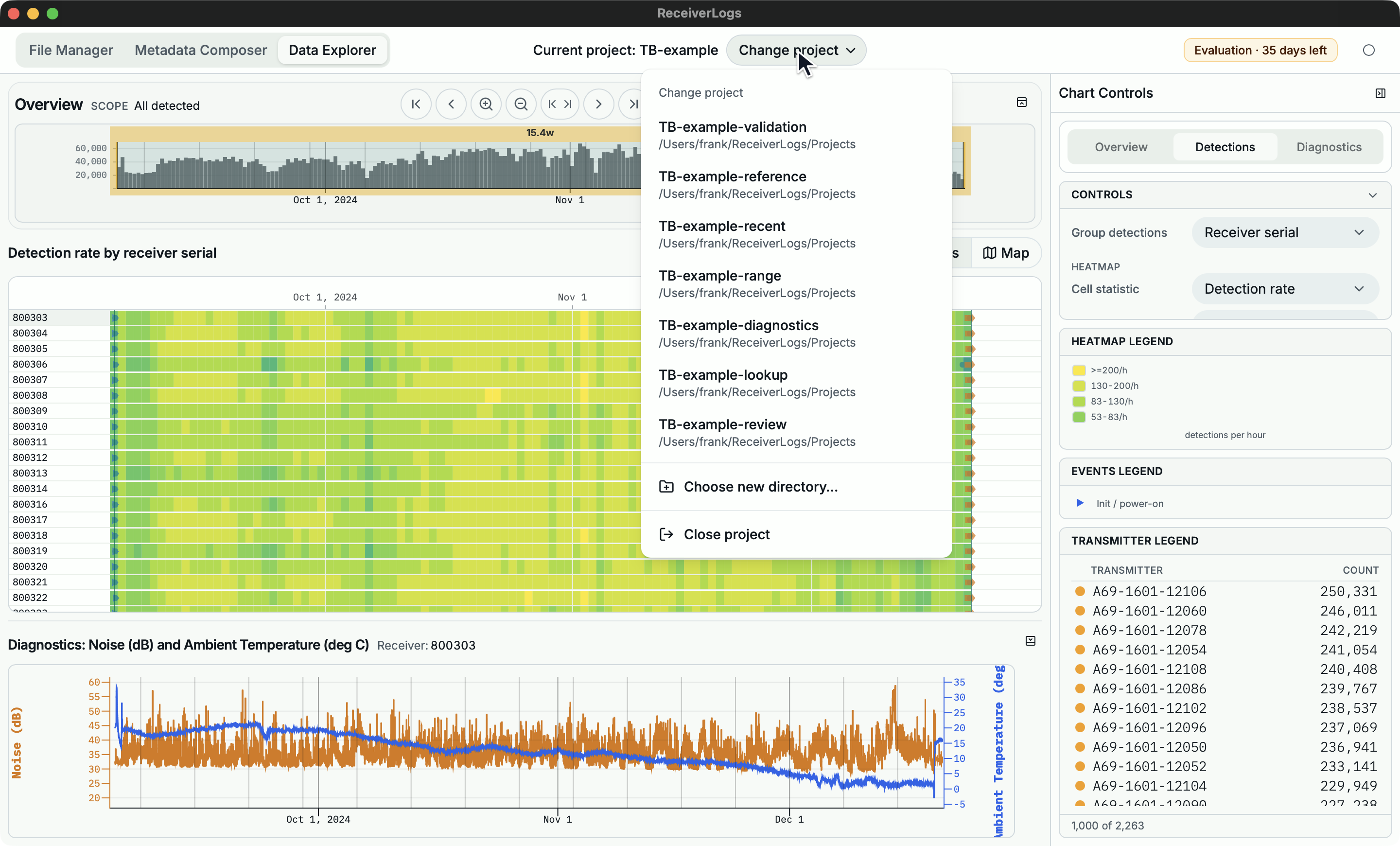
- Open the Open project menu. If a project is already open, the menu is labelled Change project.
- Choose Choose new directory… and select the project folder. ReceiverLogs opens the folder but does not scan it automatically.
- Open File Manager and choose Scan files.
- Wait for Scan complete, then review the new rows. Files with no Status warning begin outside the Dataset.
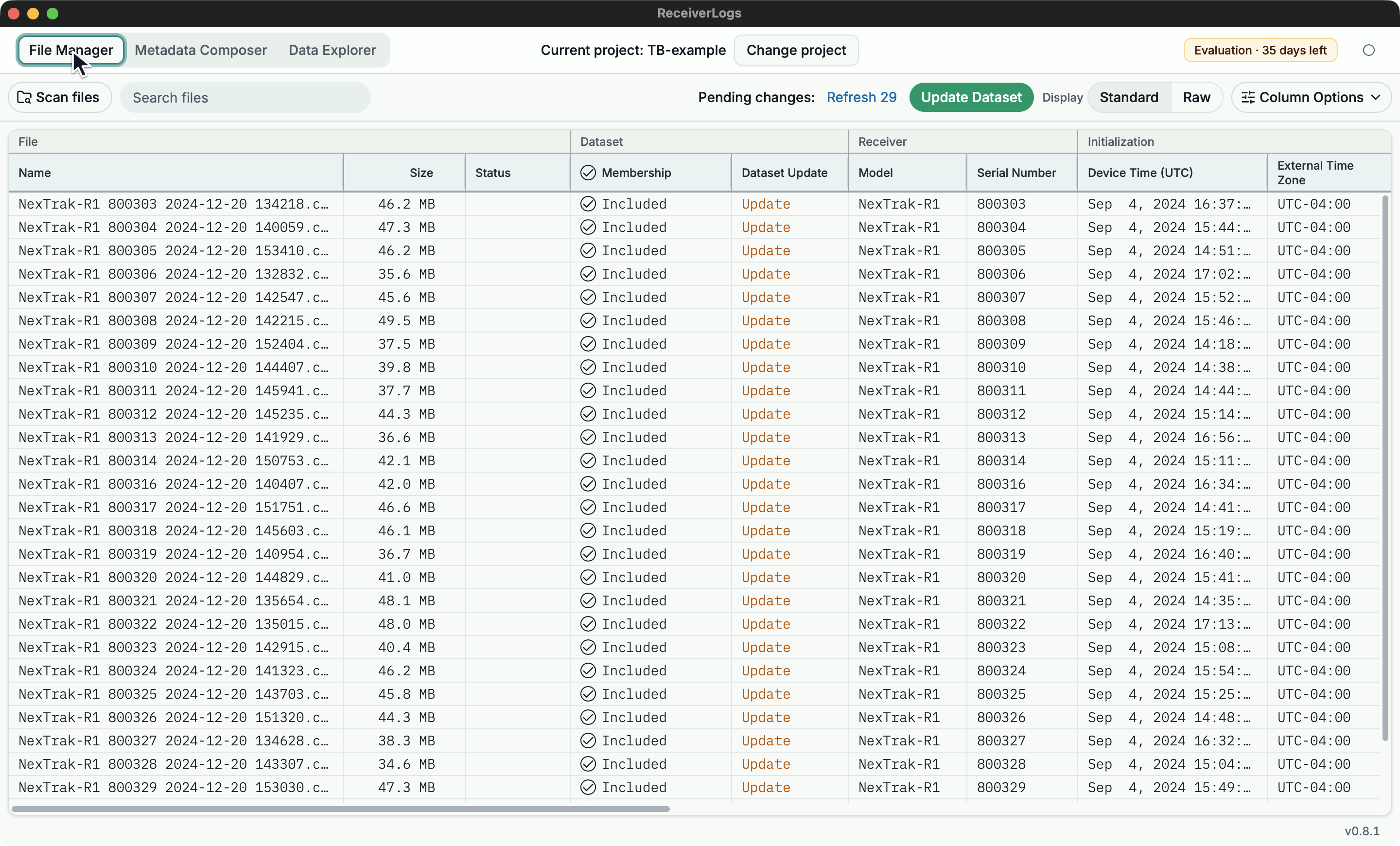
- Select Membership for each file whose records belong in the Dataset. Its pending action becomes Add.
- Choose Update Dataset and wait for Dataset updated.
- Open Data Explorer. A Dataset with detection records opens the explorer; a valid Dataset without them shows No detection records.
The Dataset is ready when the selected files have no remaining Dataset Update action and Data Explorer can open it. Leave failed or questionable files excluded until they have been repaired.
Common File Manager tasks
Add receiver-log files to an existing Dataset
- Copy or move the supported CSV files into the open project folder.
- Choose Scan files.
- Review the new rows and select Membership for the files you want to include.
- Choose Update Dataset.
The task is complete when the new rows have no pending Add action and their records appear in Data Explorer. Scanning finds and reviews files; it does not update the Dataset by itself.
Remove a present file from the Dataset
- Clear the file's Membership checkbox.
- Confirm that Dataset Update shows Remove.
- Choose Update Dataset.
The source file remains listed in File Manager and can be included again later, but its records are removed from Data Explorer.
Remove a missing file and its Dataset records
- Choose Scan files after the file has been removed from the project folder.
- Find the row with Missing Status.
- Clear Membership so Dataset Update shows Remove.
- Choose Update Dataset.
- If ReceiverLogs asks you to confirm missing-file cleanup, verify the listed paths before continuing.
After the update, the row and its records are removed. If the file reappears before confirmation, scan again instead of confirming the earlier list.
A missing file that is still selected blocks Update Dataset. Restore the file and scan again, or clear Membership to remove its records deliberately.
Search the file list
Use Search files to match a project path, Status, Dataset Update value, or visible file detail. Search is case-insensitive.
- Press
Escapein the search field or choose Clear file search to clear it. - No files match the current filter. means the project has files but the search hides them.
Repair a Dataset that cannot open normally
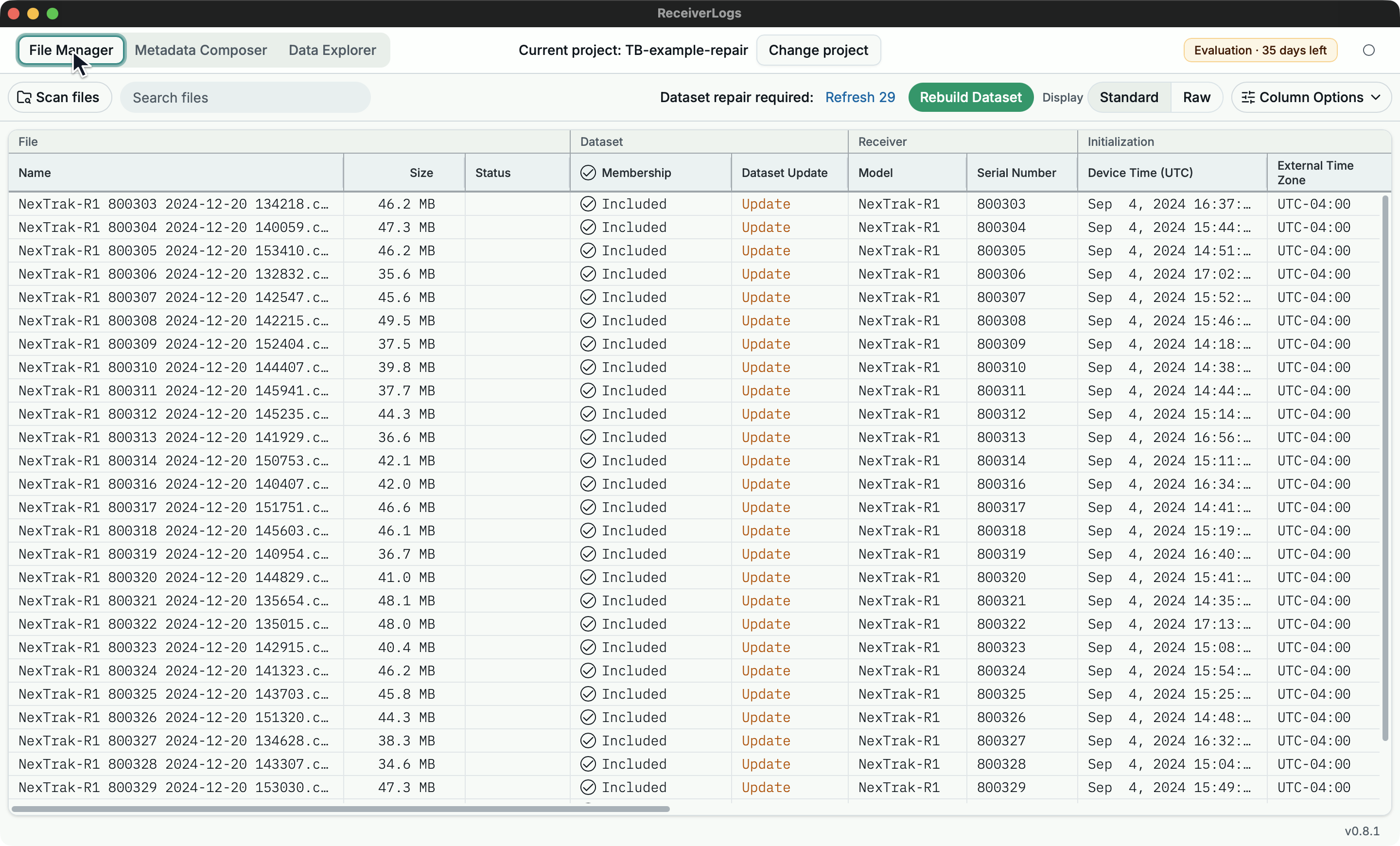
- When ReceiverLogs reports that the Dataset needs recovery, choose Open for repair. Choose Cancel if you are not ready to modify the project.
- Review the retained files and Membership choices.
- Use Scan files if it is available and the project folder has changed.
- Choose Rebuild Dataset and wait for completion.
The repair is complete when the project leaves repair mode and Data Explorer opens. A failed rebuild leaves repair mode active and does not replace the Dataset with an unverified result.
Project and Dataset mental model
ReceiverLogs keeps three ideas separate:
- The project folder contains source CSV files and the app-managed
ReceiverLogs.projectsupport folder. - File Manager remembers the files ReceiverLogs knows about and the Membership choice for each one.
- The Dataset contains the records from the last successful update and is what Data Explorer reads.
Scan files compares the folder with the saved file list. Changing Membership prepares an addition or removal. Update Dataset applies the reviewed changes. Until that update succeeds, Data Explorer continues to use the previous working Dataset.
Open, close, or switch projects
ReceiverLogs may reopen the last valid project when it starts. Opening a project restores its saved file list, Membership choices, and current Dataset; it does not scan the folder for changes.
The project menu lists up to eight recent valid projects. Choose new directory… opens another folder, and Close project closes the current project while retaining recent-project shortcuts.
If another ReceiverLogs window already has a project open for writing, close it there and retry. If switching to another project fails after the previous project closes, ReceiverLogs leaves no project open and keeps the recent-project list available.
Review file status and pending changes
The most important columns are:
| Column | Meaning |
|---|---|
| Membership | Whether the file should contribute records after the next successful update. |
| Status | Whether the file is present and usable, or needs attention. |
| Dataset Update | The pending action, such as Add, Remove, or Update. Blank means no action is waiting. |
Common Status values include:
| Status | Meaning |
|---|---|
| Blank | No current problem is reported. |
| Missing | The saved file is no longer present at its project path. |
| Inspection failed | ReceiverLogs could not inspect the file during the scan. |
| Load failed | The file could not be applied to the Dataset. |
| Out of scope or Unsupported | The file cannot contribute records in the current workflow. |
Use the Status detail for the reported cause. The receiver-log compatibility reference explains common file errors.
The Standard and Raw views change which file details are shown. Searching, sorting, filtering, and resizing columns do not change file Membership or Dataset contents.
Scan safely
A successful scan updates the File Manager review with files that are new, changed, missing, or unchanged. If ReceiverLogs cannot finish reading the folder reliably, it leaves the existing review in place instead of presenting an incomplete list as current.
After repairing a file or folder access problem, run Scan files again. Only act on missing-file cleanup after a successful scan shows the expected paths.
Update the Dataset safely
Update Dataset is available only when the current file review can be applied safely. During an update, progress shows the current file and records processed, and controls that could conflict with the update are temporarily unavailable.
The existing Dataset remains available unless the project is in repair mode. ReceiverLogs replaces it only after the requested update finishes successfully. If one or more selected files fail, the update reports the affected files and does not silently install an incomplete result.
Troubleshooting
| What you see | What it means | What to do |
|---|---|---|
| No project open | No project is active. | Open a recent project or choose a project folder. |
| No files yet | The project has no saved receiver-log files. | Put supported files in the project folder and choose Scan files. |
| No files match the current filter. | Search hides all known files. | Clear Search files. |
| Inspection failed | The file could not be inspected. | Open its Status detail, repair or replace the file, and scan again. |
| Missing | A previously known file is absent. | Restore it and scan again, or clear Membership and update the Dataset to remove its records. |
| Update Dataset is disabled | The review contains a blocking problem or no record-affecting change. | Resolve the Status problem, finish the active scan, or confirm that no update is needed. |
| The project needs recovery | The current Dataset cannot be used safely. | Choose Open for repair and follow Repair a Dataset that cannot open normally. |
| Another process has the project open | ReceiverLogs cannot obtain write access. | Close the other ReceiverLogs window or process and retry. |
| An update fails | The replacement Dataset was not installed. | Review the reported file, repair or exclude it, scan if needed, and retry. |
Limitations
File Manager supports Fathom CSV receiver logs accepted by the current loader. It does not edit source files, infer which questionable file should be included, or remove missing records without an explicit reviewed update.