Install, launch, and update ReceiverLogs
Use this guide to download ReceiverLogs for Windows or macOS, check its evaluation period, install or update the application, complete the first-launch licence steps, or remove local application data.
Download ReceiverLogs
Evaluation only — not for production use. ReceiverLogs beta is pre-release software. Keep backups and independently verify results. Choose the installer for your operating system below.
- Download ReceiverLogs for Windows (64-bit setup)
- Download ReceiverLogs for macOS (Apple silicon and Intel)
Choose the Windows setup executable on 64-bit Windows. Choose the universal DMG on an Intel or Apple-silicon Mac.
Check the evaluation period
Each evaluation beta is valid for 35 days (840 hours) from its release time. The period does not begin when you download, install, or first launch the application, so an older installer may already have expired.
While the build is active, the application header shows the remaining days and expiration date. After expiration, ReceiverLogs blocks application and project functions, but it does not delete your project files. The expired-build screen keeps the embedded legal materials available and lets you quit normally; use the normal Windows or macOS removal process if you want to uninstall the application. A newer beta is required to continue evaluating it.
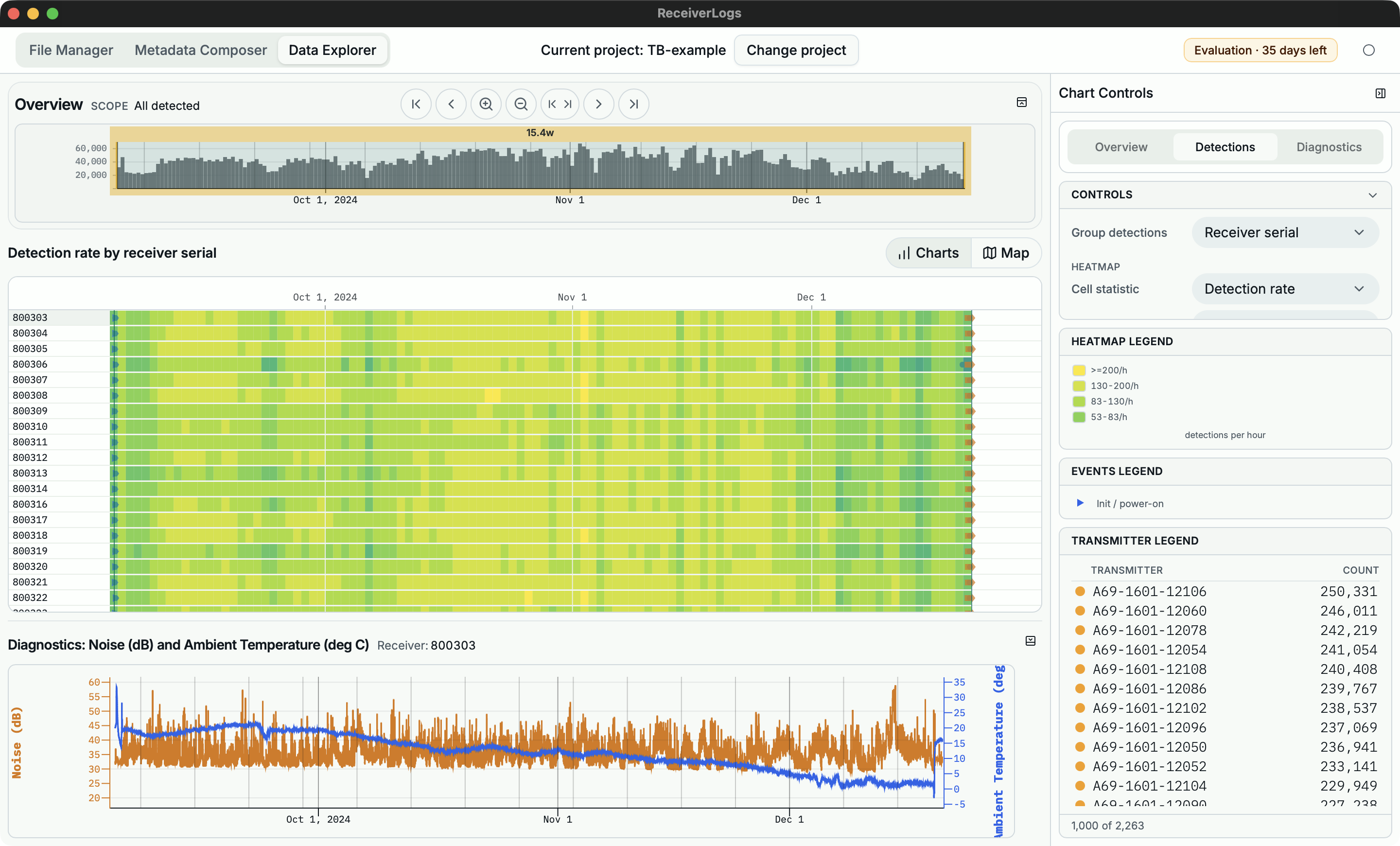
Illustrative; captured 2026-07-24. Use the live header in your installed application for its current remaining time and expiration date.
Complete the first-launch legal steps
When the legal-language screen appears, complete these steps before using ReceiverLogs:
- On the first legal screen, use Review the licence agreement in English in the left column or Consulter le contrat de licence en français in the right column. Neither option is preselected, each opens only that End User Licence Agreement for review, and the screen explains in both languages that the application and help remain English-only.
- Read the EULA in the language you chose. Use Confidentialité et avis relatifs aux tiers or Privacy and third-party notices to review the Privacy Notice and Third-Party Notices. Those notices are available for review but are not accepted by the EULA action.
- Select J’accepte et je continue or I Agree and Continue only if you accept the displayed EULA for yourself. Selecting Refuser et quitter or Decline and Quit leaves application and project functions unavailable and closes ReceiverLogs.
The assent applies only to the selected EULA. ReceiverLogs stores its local record under the current operating-system profile. The same individual's acceptance can carry forward to another build only when the exact same EULA version and text remain current in that local ReceiverLogs application-data context. Another evaluator should use their own operating-system profile or clear the existing local acceptance as described below and accept separately. ReceiverLogs has no account system and no in-app acceptance-reset control.
Install on Windows
- Download the Windows setup executable from this page.
- Open the downloaded file and complete the installer prompts.
- Launch ReceiverLogs from the Start menu or installed shortcut.
- Complete the first-launch legal steps above.
Install on macOS
- Download the universal DMG from this page.
- Open the DMG and install ReceiverLogs in Applications.
- Open ReceiverLogs from Applications.
- Complete the first-launch legal steps above.
Update ReceiverLogs
- Keep a normal backup of the project folder before upgrading.
- Close ReceiverLogs.
- Download the newest available installer for your operating system from this page.
- Install it over the older version.
- Launch ReceiverLogs and reopen the project.
If the newly installed build contains the same exact EULA already accepted by the same individual in this operating-system profile, ReceiverLogs reuses that local acceptance. If the EULA identity or text changed, the legal-language and assent steps appear again. Updating the application does not restart or extend the build's 35-day period.
Find or remove local application data
ReceiverLogs uses the application identifier com.receiverlogs. Quit ReceiverLogs before removing any of its local data.
| Platform | ReceiverLogs application-data directory | How to open it |
|---|---|---|
| Windows | %APPDATA%\com.receiverlogs\ | Open File Explorer, enter %APPDATA%\com.receiverlogs\ in the address bar, and press Enter. |
| macOS | ~/Library/Application Support/com.receiverlogs/ | In Finder, choose Go > Go to Folder, enter ~/Library/Application Support/com.receiverlogs/, and select Go. |
The local acceptance records and retained accepted EULA text are in the legal/ subdirectory. If a different evaluator must use the same operating-system profile, the safer option is to create a separate operating-system account. Otherwise, quit ReceiverLogs, delete only the legal/ subdirectory, relaunch ReceiverLogs, and have the new evaluator complete the legal-language and EULA steps themselves. There is no in-app reset control.
To remove all ReceiverLogs-managed local data, quit and uninstall ReceiverLogs, then delete the complete application-data directory listed above. This removes local settings, acceptance evidence, project history, caches, and application logs stored there. It does not delete project directories, exports, backups, operating-system logs, or files stored elsewhere; remove those separately if wanted.
Continue with ReceiverLogs
| If you want to | Continue with |
|---|---|
| Understand the project workflow | How a ReceiverLogs project works |
| Start working with supported Fathom CSV files | Build your first Dataset |
| Choose another task | ReceiverLogs help home |
Troubleshooting
For email support, initially send only your operating system, the page URL or ReceiverLogs version if available, and a description of the problem. Do not attach projects, receiver logs, screenshots containing personal or confidential information, or other data unless ReceiverLogs support asks you to and provides a secure way to send them. Review the Privacy Notice first. If you intentionally send product feedback, the feedback wording shown before the email action and the EULA explain how its substance may be used.
| What you see | What to do |
|---|---|
| An installer link is missing | Reload the page. If the link remains unavailable, contact ReceiverLogs support at support@franksmithxyz.com and include the page URL and your operating system. |
| An installer link downloads an unexpected file | Do not install it. Return to the download page and try again. If the problem persists, contact ReceiverLogs support at support@franksmithxyz.com and include the page URL and downloaded filename. |
| The expired-build screen appears | Return to this page and install the newest available beta for your operating system. If this page offers the same expired version, a newer beta is not yet available. |
| The legal-language screen appears again after an update | The current build does not recognise a matching local acceptance for its exact EULA. Choose your preferred legal-document language and accept again if you agree. |
| A different evaluator needs to use the same computer | Give them their own operating-system profile. If that is not practical, quit ReceiverLogs and delete only the legal/ subdirectory at the application-data location above before they launch and accept for themselves. |
| ReceiverLogs launches but no project is open | Open a recent project or choose a project folder. To create a project, follow Build your first Dataset. |
Limitations
This site provides only the Windows 64-bit setup executable and universal macOS DMG; ReceiverLogs is not available for Linux. ReceiverLogs and its help are English-only; the first-launch legal-language screen and embedded legal documents are available in English and French.