Import and discover metadata
Use these procedures to build Device records from the current Dataset, paste a recognised Station or Device table, or import an Excel tag sheet. Review the proposed or imported records before relying on them in Data Explorer.
Build Devices from the current Dataset
- In File Manager, use Update Dataset so the current Dataset contains the detection records you want to use.
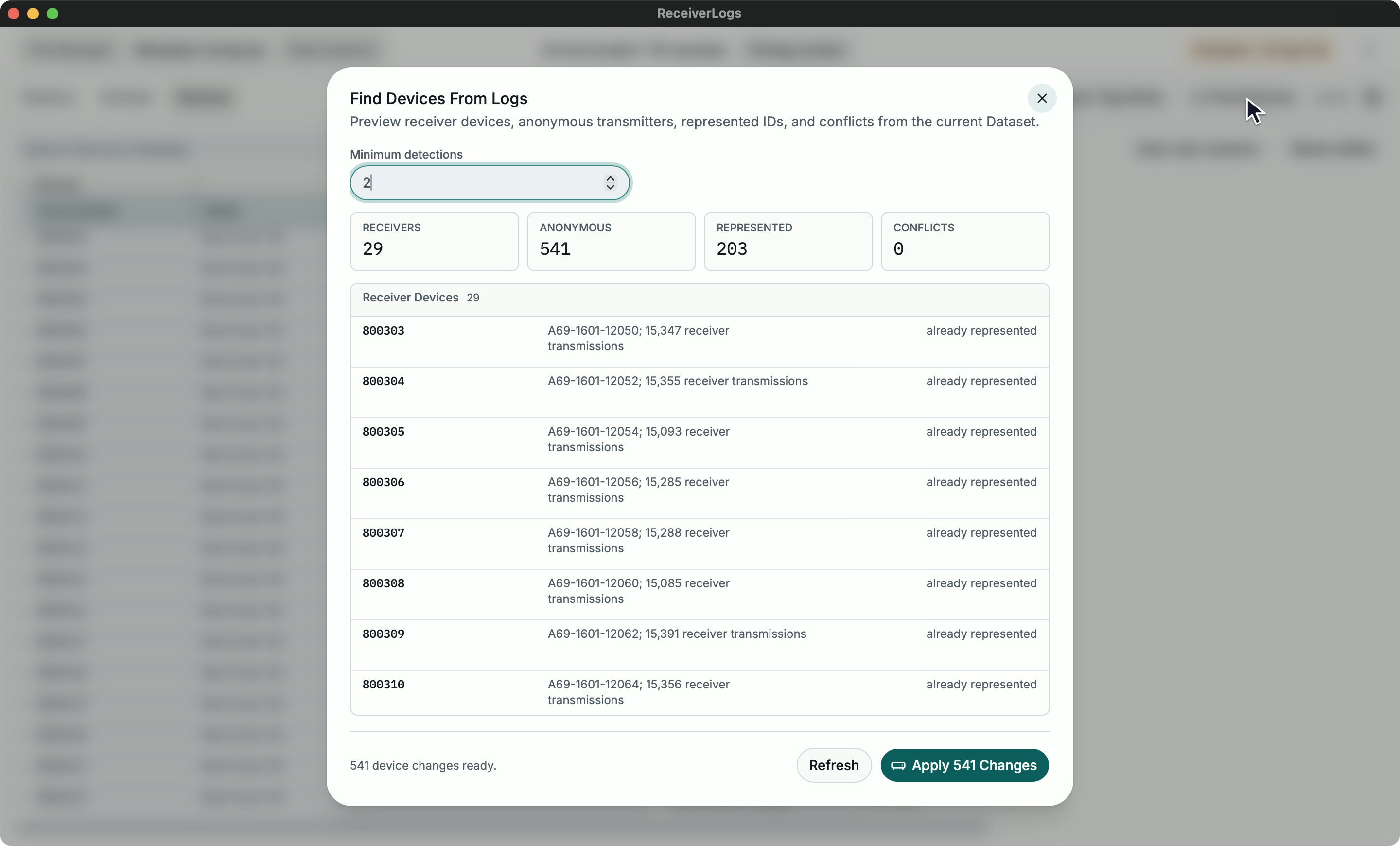
- In Metadata Composer, wait for Saved, open Devices, and choose Find Devices.
- Wait for Find Devices From Logs to show the evidence summary.
- If needed, change Minimum detections, then choose Refresh.
- Review the proposed receiver Devices, anonymous transmitters, represented IDs, below-threshold IDs, and conflicts. Sections with no rows are omitted.
- If the action says Resolve Conflicts First, close the dialog, repair the listed identities, save, and reopen the preview.
- Choose the enabled apply action, such as Apply 2 Changes. If it says No Changes To Apply, close the dialog without changing metadata.
A successful apply closes the dialog, returns the status to Saved, and reports the receiver, anonymous-device, and conflict counts. Review the resulting Device rows before using them for analysis.
Import a station or device table
- Copy one rectangular table with a complete recognised header row:
- Stations:
Name,Latitude,Longitude, andIdent - Devices:
Serial,Model, andFullId
- Stations:
- Open the matching Stations or Devices workbench and focus an editable cell.
- Paste with
Cmd/Ctrl+V. - Wait for Imported N stations or Imported N devices, then wait for Saved.
- Review the imported rows and validation before repeating the paste.
Multiple source rows may merge into one Station or Device. ReceiverLogs leaves duplicate names, duplicate serials, and conflicting transmitter owners visible for explicit repair.
Import a tag sheet
- In the desktop application, open Devices and wait for Saved.
- Choose Import Tag Sheet and select the intended Excel workbook.
- Wait while the toolbar shows Importing tag sheet.
- Confirm that the result reports the expected tag-sheet rows, Devices, and new transmitter IDs.
- Wait for Saved, then review new and merged Device rows for conflicts.
Canceling the file picker leaves metadata unchanged. Import failed: message also preserves the metadata from before the import; use the message and the compatibility information below to repair the workbook.
How Find Devices uses receiver-log evidence
Find Devices reads the current Dataset; scanning files without running Update Dataset does not change its evidence.
What the preview can propose
The preview can propose:
- receiver Devices identified by receiver serial numbers
- transmitter IDs that are not yet represented in Devices
- IDs below the selected detection threshold for review only
- IDs already represented by existing Devices
- rows that can merge into an existing Device
- identity conflicts that need manual repair
Detection counts and anonymous Devices
The Detections column counts non-self detections for each transmitter ID. It shows Loading while evidence is being read, Unavailable when ReceiverLogs cannot read the Dataset, and 0 when ReceiverLogs reads it successfully but finds no matching detections.
Minimum detections applies only to otherwise-unrepresented external transmitter IDs. It defaults to 2, accepts whole numbers of at least 1, and lasts for the current Metadata Composer session.
When the physical serial is unknown, ReceiverLogs can create an anonymous Device containing only the transmitter ID. The table displays its serial as Anonymous, but its serial remains blank until you identify or merge it. Metadata grouping that requires a serial remains unresolved until that repair is complete.
Recognised clipboard tables
Header matching is case-insensitive and ignores surrounding whitespace. A complete recognised header row may appear anywhere in the pasted rectangle. If the complete Station or Device header set is absent, ReceiverLogs treats the clipboard as an ordinary grid paste.
Recognised Station tables can populate the Station name, first deployment, first position, and device attachments. Recognised Device tables can populate serial, model, and transmitter IDs. Unmapped workbook columns are ignored.
Imported time and coordinate text follows the same rules as values entered directly in Metadata Composer. Review Entered and interpreted values when a value remains unresolved.
Tag-sheet compatibility
Supported tag sheets are .xlsx, .xlsm, and .xls workbooks. ReceiverLogs prefers a sheet named like Tag Summary and requires columns equivalent to Serial No. and VUE Tag ID; Tag Family can supply an empty Device Model.
ReceiverLogs skips hidden and non-table sheets while looking for a usable table. It rejects symbolic links, non-Excel files, ambiguous tables, and selected worksheets with hidden rows.
User-actionable size limits are:
- file size:
64 MiB - sheets:
32 - selected worksheet rows:
100,000 - selected worksheet cells:
1,000,000 - copied cell text:
64 MiB
If a workbook exceeds a limit, reduce it to the intended tag table and import again.
Merge and identity results
| Situation | Result | What to do |
|---|---|---|
| One Station name or Device serial matches | Non-empty imported values update that record and missing child records are added. | Review the merged row. |
| No matching identity exists | ReceiverLogs creates a new Station or Device. | Review the new record and validation. |
| More than one record owns the identity | ReceiverLogs does not choose an owner. | Repair duplicates, save, and repeat the import. |
| A transmitter ID belongs to an anonymous Device and the tag sheet identifies its serial | The anonymous row can be absorbed into the identified Device. | Review the combined transmitter IDs. |
| A transmitter ID belongs to another known serial | The import reports a conflict. | Confirm the correct physical Device and repair the conflicting row. |
| Existing and imported Model or Notes values conflict | ReceiverLogs preserves both records rather than silently discarding description. | Resolve the descriptive conflict, then merge explicitly if appropriate. |
| The same import is repeated | Existing matching values are not duplicated. | Confirm the reported counts; no repair is needed when the result is unchanged. |
To merge Device rows manually, select at least two visible rows, choose Merge Devices, and review the surviving serial, transmitter IDs, removed rows, and affected attachments before confirming.
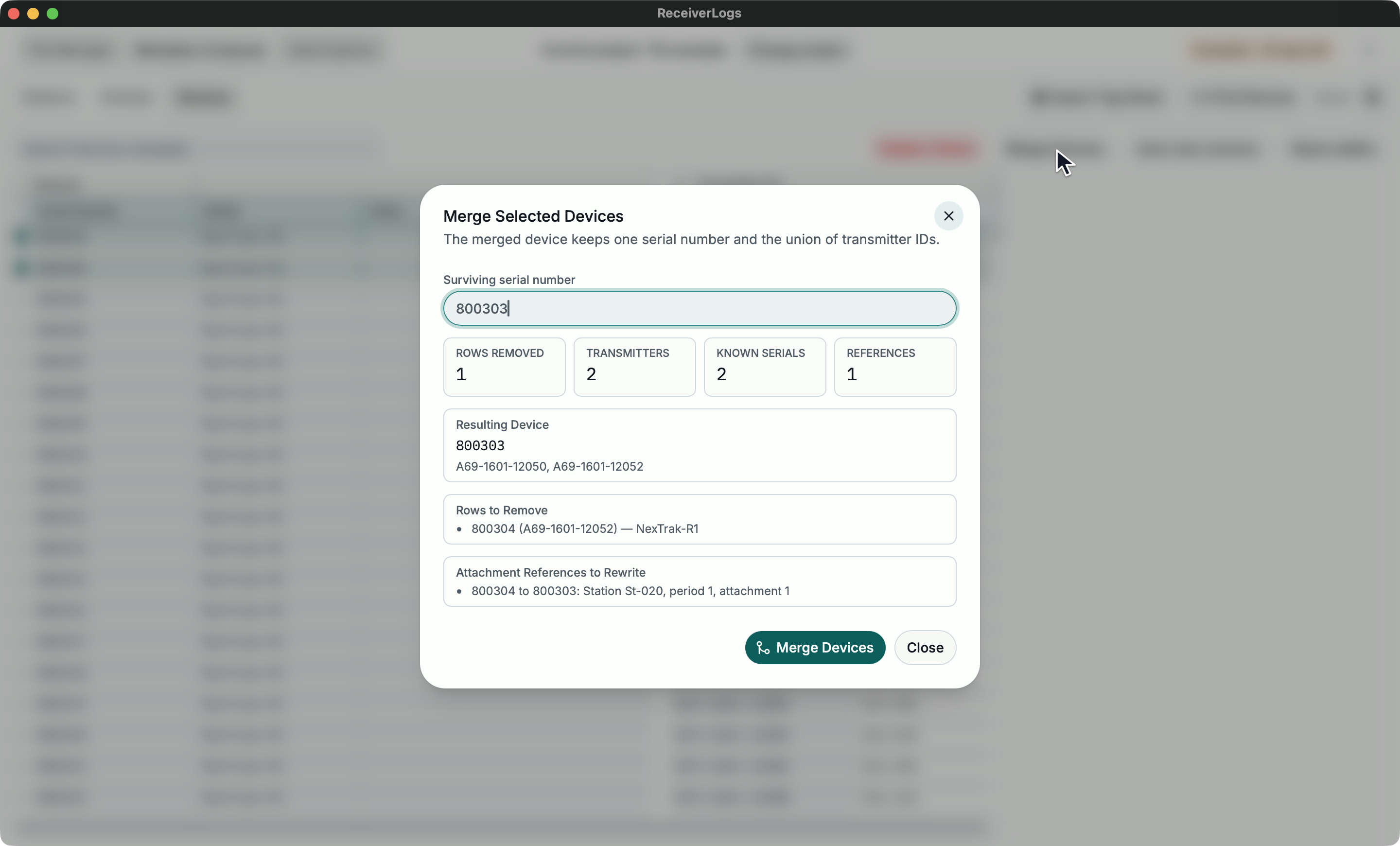
Changing one unique Device serial to another unused serial also updates matching Station and Animal attachments. Duplicate or ambiguous serial changes remain validation issues instead of triggering automatic reference changes.
Status and recovery
| What you see | What to do |
|---|---|
| Reading receiver-log evidence... or Refreshing receiver-log evidence... | Wait for the visible preview before applying changes. |
| Resolve Conflicts First | Read Conflict Details, repair duplicate or conflicting identities, save, and refresh. |
| No Changes To Apply | Close the dialog; the current evidence proposes no metadata changes. |
| Importing tag sheet | Wait for the workbook import to finish. |
| Import failed: message | Correct the workbook, Dataset state, stale preview, or identity conflict described by the message, then retry. |
Limitations
- Header-aware clipboard import recognises only the Station and Device column sets documented above.
- Tag-sheet import is available only in the desktop application.
- Workbook fields without corresponding Metadata Composer fields are not imported.
- Ambiguous identities and conflicting descriptions require explicit repair; ReceiverLogs does not choose which record is correct.