Metadata tables and record operations
Use this reference while working in the Stations, Animals, and Devices tables. It describes the hierarchy, keyboard commands, selection, clipboard operations, record creation and deletion, search, sorting, suggestions, and column controls.
Quick reference
| Task | Command or behaviour |
|---|---|
| Save now | Choose Save metadata now or press Cmd/Ctrl+S. |
| Search | Press Cmd/Ctrl+F; Enter returns to the table and Escape clears search. |
| Start editing | Type, press F2, press Space, press Backspace, or double-click an editable cell. |
| Commit and move | Tab / Shift+Tab moves through editable cells; Enter / Shift+Enter moves vertically. |
| Move without editing | Arrow keys, Home / End, Cmd/Ctrl+Home / Cmd/Ctrl+End, and PageUp / PageDown. |
| Select cells | Shift+Arrow, Shift-click, drag, or Cmd/Ctrl+A. |
| Select Station, Animal, or Device rows | Use the row-selection rail or Shift+Space; use Shift to extend and Cmd/Ctrl to toggle rows. |
| Copy | Copy uses selected rows first, selected cells second, or the focused cell otherwise. |
| Paste | A single value fills selected editable cells; a tab-separated table starts at the focused cell. |
| Fill down | Press Cmd/Ctrl+D. |
| Clear values | Press Delete; a non-empty multi-cell clear requires the same command a second time. |
| Add a top-level record | Type or paste into the trailing blank row. |
| Add a child record | Enter the first empty child slot, or use Cmd/Ctrl+Enter or an Add action for later children. |
| Delete a record | Press Cmd/Ctrl+Delete or Cmd/Ctrl+Backspace, or use Delete Record. Repeat the same action to confirm. |
| Open cell actions | Right-click, press Shift+F10, or press the Context Menu key. |
| Merge Device rows | Select at least two Device rows, choose Merge Devices, and review the preview. |
Understand the table hierarchy
The tables show parent and child records together:
- Stations contain Deployment Periods, which contain Positions and Device Attachments.
- Animals contain Tracking Periods, which contain Device Attachments.
- Devices contain Transmitter IDs.
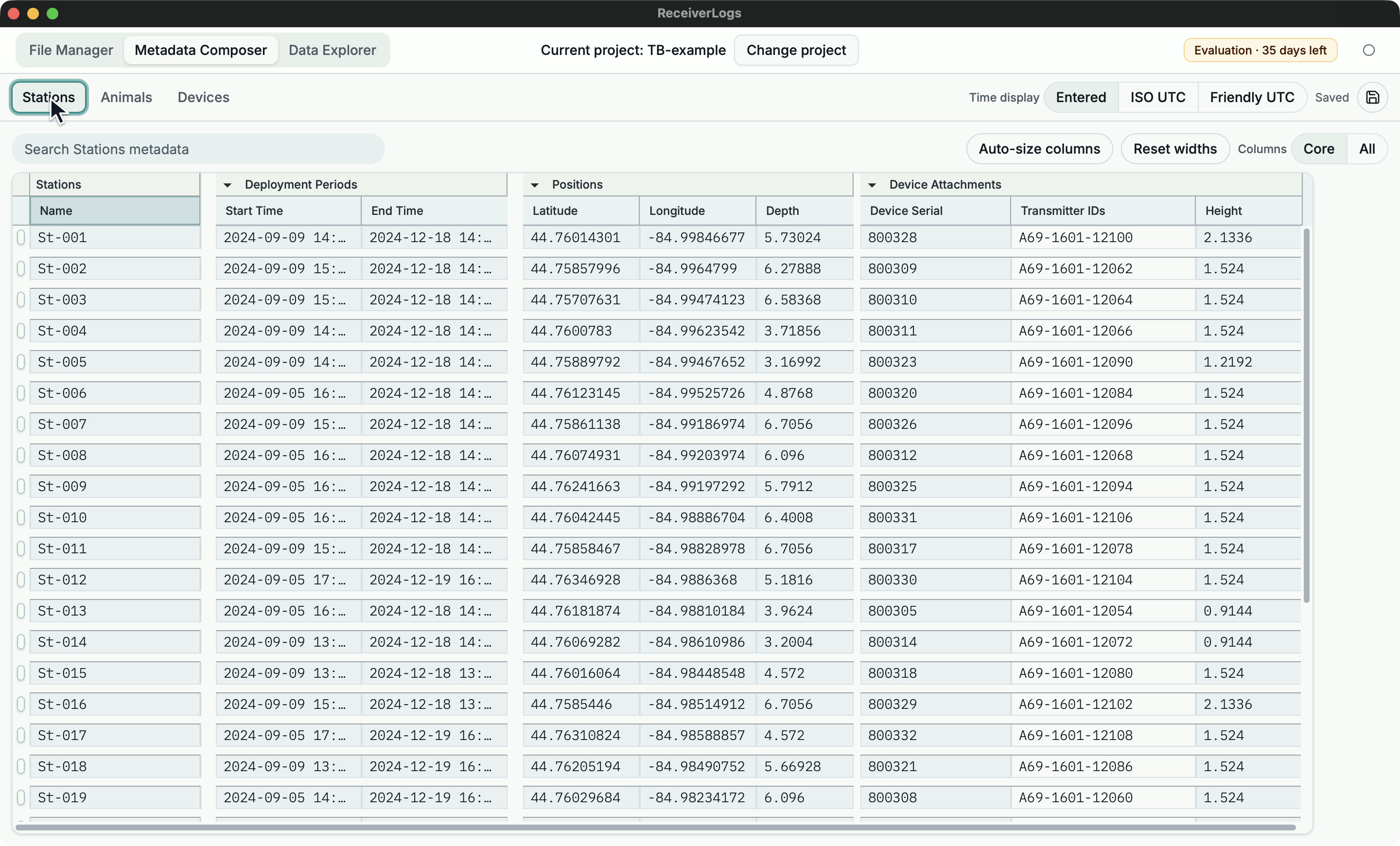
The upper header names record groups; the lower header names individual fields. Station or Animal names and Device serials remain pinned during horizontal scrolling.
- Editable cells can be changed.
- Read-only cells can be selected and copied but not changed.
- Blank areas with no record behind them are not editable cells.
- Collapsed groups show read-only summaries. Expand a group to edit its records.
Child records with valid start times appear newest first. If editing a start time changes the order, focus follows the moved record.
When a child list is empty, one editable first-child slot lets you begin the first period, position, attachment, or transmitter ID. It is saved only after a meaningful edit.
Navigate and edit
Click once to select a cell. Type to replace an editable value, or press F2, Space, or double-click to edit the current value. Backspace begins an empty edit.
| Key | Behaviour |
|---|---|
Tab / Shift+Tab | Commit and move through editable cells. |
Enter / Shift+Enter | Commit and move vertically in the same column. |
| Arrow keys | Move through visible cells without editing. |
Home / End | Move to the first or last visible cell in the current row. |
Cmd/Ctrl+Home / Cmd/Ctrl+End | Move to the first or last visible table cell. |
PageUp / PageDown | Move about one visible page. |
Cmd/Ctrl+ArrowLeft / Cmd/Ctrl+ArrowRight | Jump between visible column groups. |
Escape while editing | Cancel the uncommitted edit. |
Escape while navigating | Reduce a range to the active cell and clear row selection. |
Shift+F10 | Open actions for the selected cell. |
When a menu is open, use arrow keys to move, Enter or Space to run an action, and Escape to return to the cell.
Select, copy, paste, fill, and clear
Use Shift+Arrow, Shift-click, or drag to select a rectangular range. Use the row-selection rail or Shift+Space when you need whole Station, Animal, or Device records.
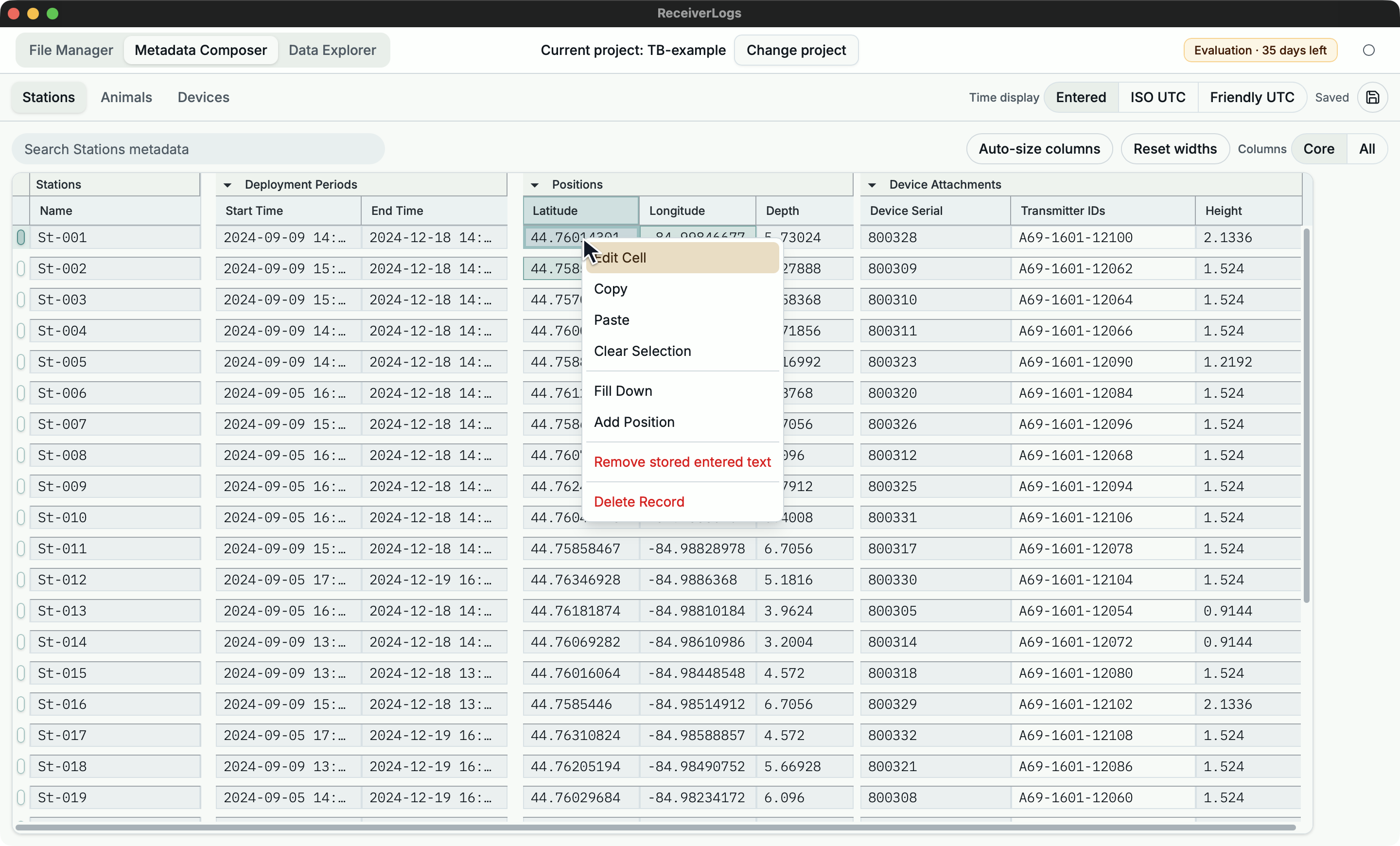
Copy preserves the visible rectangular shape, including read-only values and blanks. Paste starts at the selected cell and follows visible rows and columns:
- A single value fills the selected editable cells.
- A tab-separated table fills a rectangular area.
- Read-only cells are skipped without shifting later values out of alignment.
- Hidden rows, hidden columns, collapsed children, and blank areas are not changed.
- A paste is rejected if non-empty values would cross into an unrelated record group or have no clear destination.
A one-column list pasted into Station Name, Animal Name, or Device Serial Number can update visible rows and create additional top-level records. It follows the current visible search and sort order; hidden rows are unchanged.
Cmd/Ctrl+D fills each selected column from its first editable value. Delete clears the active cell. Clearing non-empty values across a range requires the same clear command a second time, because the tables do not provide undo.
Header-aware Station/Device tables and Excel tag sheets use separate import workflows described in Import and discover metadata.
Create and delete records
Each table keeps a blank entry row at the bottom. Entering a meaningful value there creates a Station, Animal, or Device and leaves another blank row available.
Entering a value in the first empty child slot creates the first child record. For additional child records, use Cmd/Ctrl+Enter or the appropriate Add action.
Delete removes the focused record and any children it owns. Clearing a value leaves the record in place. Because deletion cannot be undone, the first delete action previews the target; repeat the same action to confirm it.
Select top-level rows to expose Delete Row or a count-specific action such as Delete 2 Rows. After deletion, focus stays near the deleted record when possible.
Search, sort, and manage columns
Press Cmd/Ctrl+F to search the active workbench. Search is case-insensitive, filters top-level records, and matches displayed values. The trailing blank row remains available under an active search.
Click a sortable record-group header to cycle through ascending, descending, and unsorted order. Empty values remain last. Sorting changes presentation only; it does not reorder saved metadata or change which record an edit targets.
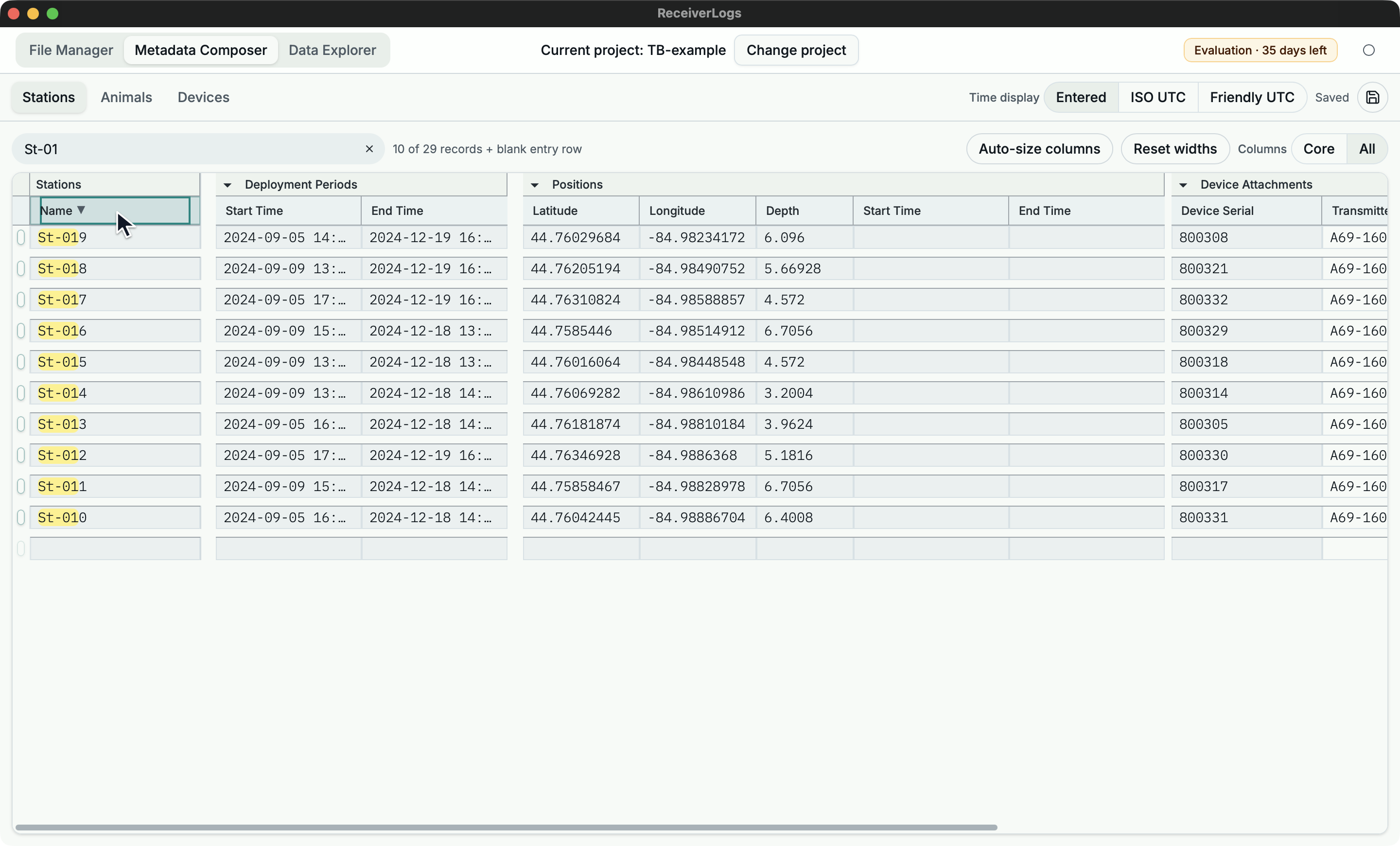
Column controls let you:
- expand or collapse record groups
- resize visible columns
- auto-size visible columns
- reset widths to their defaults
- switch between Core and All columns
These choices change presentation only.
Use Device suggestions and navigation
Device Attachment serial fields suggest Devices by serial, transmitter ID, and related detail. Use arrow keys to select a suggestion and Tab or Enter to accept it. If no suggestion is selected, ReceiverLogs keeps the text exactly as entered.
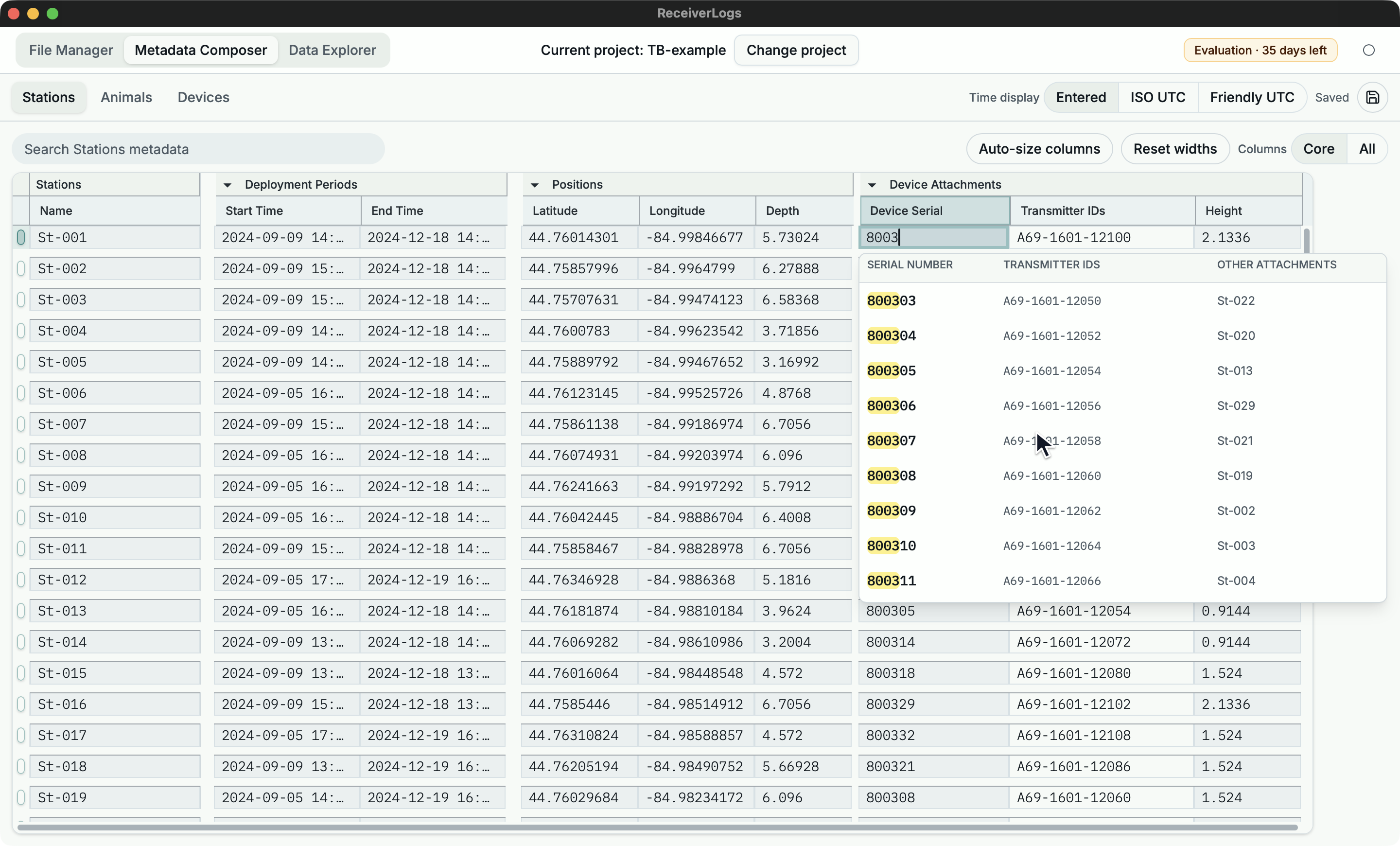
The Device Attachment cell menu can also:
- open Search Devices...
- choose Go to Device when one Device matches
- choose Go to First Matching Device when duplicates need review
- choose Create Device and Go for a missing serial
Placeholders
An empty child period, position, attachment, or transmitter ID can remain as working space after saving. It does not affect validation or Data Explorer until it contains meaningful content. A partially completed child is not ignored; validation reports missing values or relationships that prevent it from being used.
Delete placeholder rows explicitly when you no longer need them.
Limitations
Metadata tables do not provide formulas, fill handles, per-cell formatting, non-contiguous cell ranges, arbitrary hidden rows, row numbers, or undo/redo. Collapsed summaries are for review and copy, not direct editing.