Metadata values, validation, and recovery
Use this guide to repair metadata relationships, correct dates and coordinates, understand validation, confirm saving, and recover from metadata read, save, or import problems.
Repair a metadata-backed grouping
- In Data Explorer, use Receiver serial or a raw Transmitter ID grouping over the affected period and note an example that is missing from the metadata-backed grouping.
- In Metadata Composer, repair the matching relationship:
- Receiver station requires one Device with the receiver serial, attached to one Station deployment covering the detection time.
- Transmitter serial requires the detected transmitter ID to belong to one Device with a serial.
- Transmitter station or Animal also requires that Device to be attached to one Station or Animal during the detection time.
- Repair duplicate serials, duplicate transmitter IDs, invalid intervals, and overlapping attachments.
- Wait for Saved, return to Data Explorer, and choose the metadata-backed grouping again.
The repair is complete when the expected row and detections appear.
Enter or repair dates and coordinates
- Enter a supported value in the affected time, latitude, longitude, depth, or height cell.
- Leave the cell and wait for Saved.
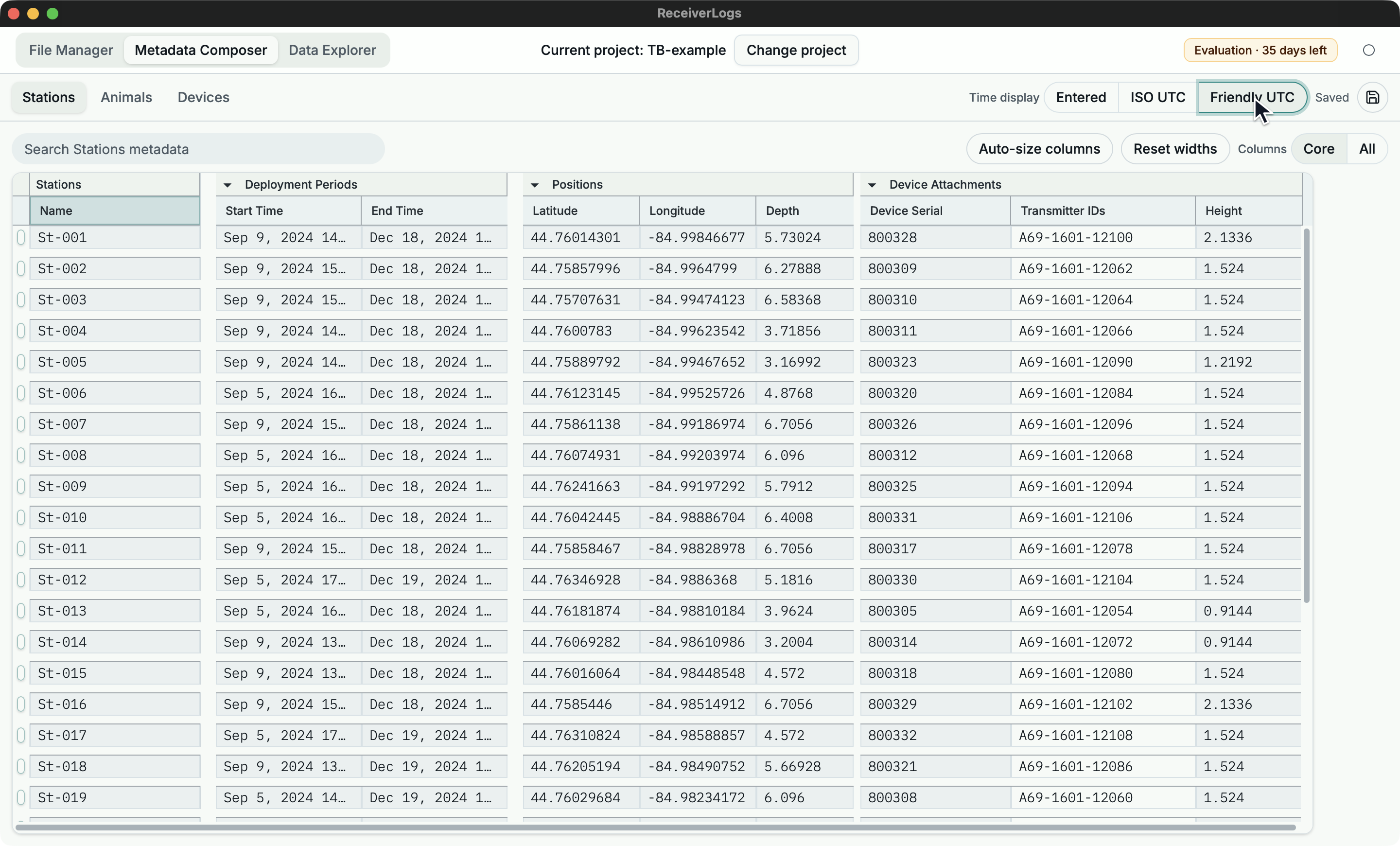
- For times, use Time display to compare Entered, ISO UTC, and Friendly UTC.
- If a parse issue remains, return to Entered, correct the retained text, and save again.
The repair is complete when the entered text remains reviewable and the cell no longer reports a parse issue.
Validation
Validation can report:
- missing or duplicate Station, Animal, Device, or attachment identities
- duplicate transmitter IDs
- time values that cannot be interpreted or are out of order
- Position or Attachment intervals outside their parent period
- missing Device references
- overlapping attachments for the same Device
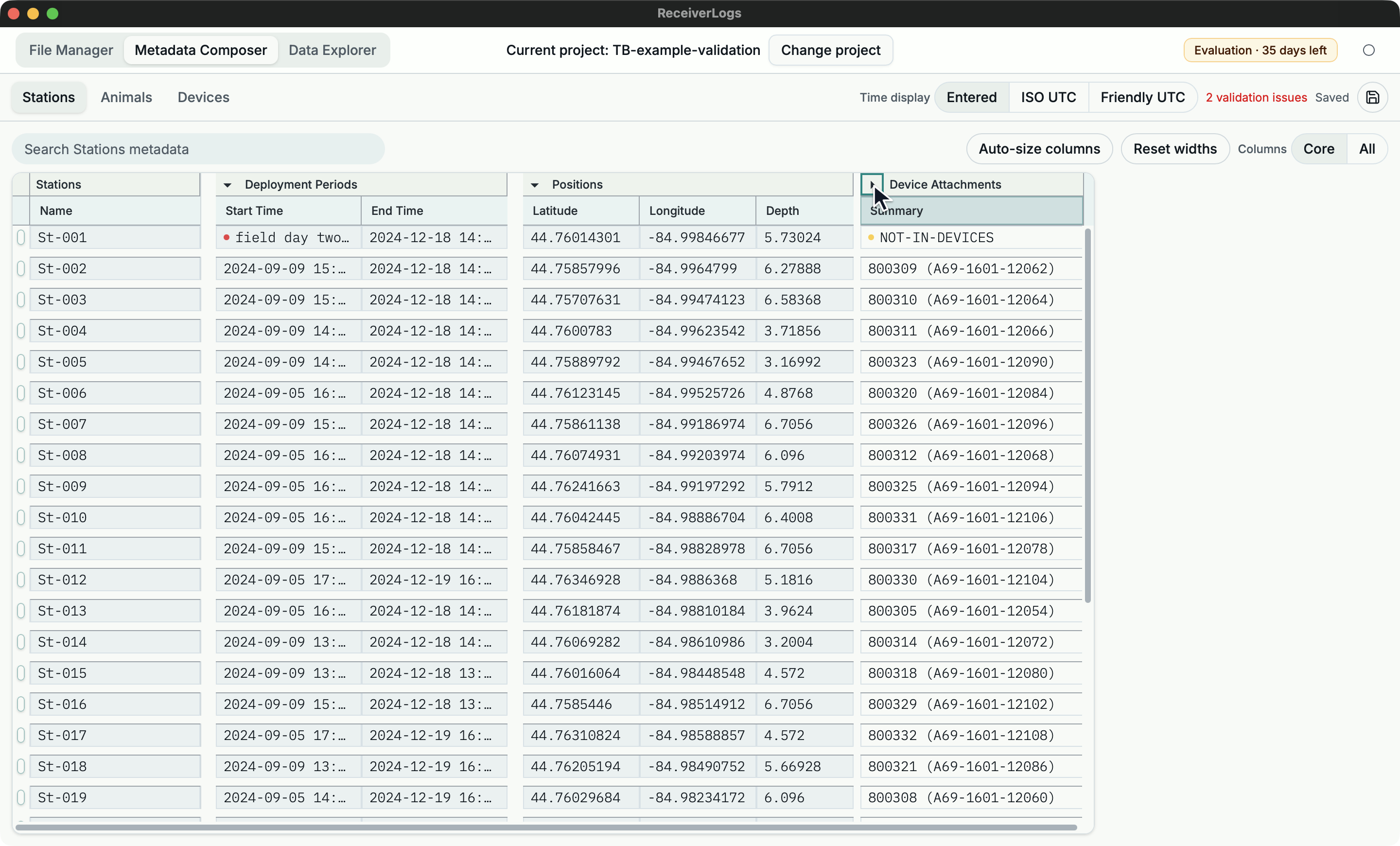
Issues beside visible cells identify the value that needs attention. Collapsed summaries show the most important issue from hidden children; expand the group to reach the affected cell.
Project-wide issues that do not belong to one visible cell appear in the toolbar summary. The summary lists those issues but does not jump to or reveal a cell.
Validation does not prevent ordinary editing or saving. Data Explorer ignores a relationship that is missing, invalid, duplicated, or ambiguous until it is repaired.
An anonymous Device may have transmitter IDs and a blank serial without a missing-serial error. Duplicate non-empty serials and duplicate transmitter IDs remain issues because ReceiverLogs cannot identify one Device reliably.
Save metadata
ReceiverLogs saves metadata in the open project at ReceiverLogs.project/expanded-metadata.json. A project without this file opens with empty Stations, Animals, and Devices tables.
When saving, ReceiverLogs:
- trims leading and trailing whitespace
- clears optional values that contain only whitespace
- keeps required but blank identity fields visible so validation can explain what is missing
- preserves empty child rows that you are using as working space
Edits save automatically after a short pause. Choose Save metadata now or press Cmd/Ctrl+S when you want to save immediately or retry after repairing a value.
Status labels
| Label | Meaning |
|---|---|
| No project open | Open a project before editing metadata. |
| Reading metadata... | ReceiverLogs is loading the project's metadata. |
| Metadata query failed | The metadata file could not be read before the tables opened. |
| Unsaved | The visible edits have not reached a successful save. |
| Saving | A save is in progress. |
| Saved | The current edits match the last successful save. |
| Save failed | The save failed; use the accompanying message when available. |
| Importing | ReceiverLogs is importing a tag sheet or applying Find Devices changes. |
| Import failed | The import or Find Devices apply failed; use the accompanying message when available. |
Recover an unreadable metadata file
If expanded-metadata.json cannot be read, Metadata Composer shows the error and an explicit reset action.
- Preserve a copy of the unreadable file outside
ReceiverLogs.projectwhen possible. - Use reset only if you accept replacing it with an empty metadata document.
- Confirm the warning.
Reset discards the metadata in the unreadable file. Ordinary validation issues do not require reset; repair them in the tables.
While a tag-sheet import or Find Devices apply is running, the metadata tables are read-only. Navigation and copy remain available; editing and structural actions return when the operation finishes.
Entered and interpreted values
Ordinary names, serials, transmitter IDs, models, and notes are saved as trimmed text. Time and coordinate fields keep the text you entered and derive an interpreted value when the form is supported.
If ReceiverLogs cannot interpret the text, it remains visible for repair and the value is not used by validation, map position, or metadata-backed grouping.
Stations and Animals share a Time display control:
- Entered shows retained text when available.
- ISO UTC shows the interpreted timestamp in ISO form.
- Friendly UTC shows the interpreted timestamp in a readable UTC form.
The choice lasts for the current Metadata Composer session. It changes display only, not saved timestamps or other fields.
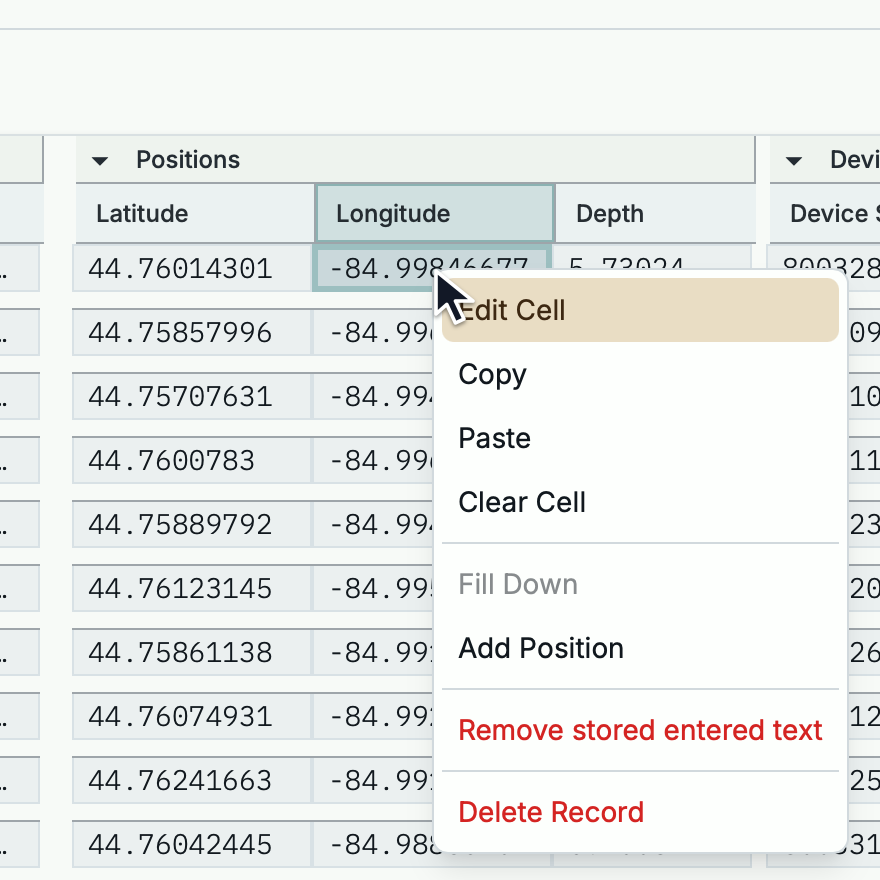
Use Adopt displayed text as entered value when you want to retain a displayed interpreted value as source text. Use Remove stored entered text to discard retained source text while keeping the interpreted value.
Supported entry forms
| Value | Supported forms |
|---|---|
| Date | YYYY-MM-DD, interpreted as midnight UTC at the start of that date. |
| Date and time | YYYY-MM-DD HH:MM[:SS] or YYYY-MM-DDTHH:MM[:SS], with optional fractions and Z or a numeric UTC offset. A missing zone means UTC. |
| Friendly UTC | An English three-letter month such as Jan 23, 2026 11:12:32. |
| Excel date | A normal 1900-system Excel serial date in the supported modern date range. |
| Longitude or latitude | Signed decimal degrees, degrees and decimal minutes, or degrees/minutes/seconds, with optional E, W, N, or S. |
| Depth | A non-negative metre value, optionally followed by m, depth, m depth, below, or m below. |
| Attachment height | A signed metre value, optionally followed by m. |
Dates must be real calendar dates. Longitude must be from -180 to 180; latitude must be from -90 to 90. Thousands separators, exponent notation, NaN, and Infinity are not accepted.
Interval rules
Boundaries: Start Time is included; End Time is excluded. A date-only End Time such as 2024-06-01 ends at midnight at the start of June 1.
Blank child boundaries: A blank Position or Attachment boundary inherits the corresponding parent period boundary. A blank outer period boundary is open in that direction.
Touching intervals: One interval may end exactly when another begins without overlap. The interval that begins at that instant supplies the context.
Empty intervals: Equal effective start and end times create an empty interval that matches no detections.
Invalid text: A boundary that cannot be interpreted is unusable, not open-ended. Repair it before relying on the period, Position, or Attachment.
Longitude and latitude use WGS84 degrees. Depth is positive-down metres, and Station attachment Height is signed metres.
Troubleshooting
| What you see | What to do |
|---|---|
| No project open | Open the intended project and return to Metadata Composer. |
| Metadata query failed | Preserve the file, review the reported error, and use reset only if you accept replacing it with empty metadata. |
| Unsaved remains visible | Wait for autosave or use Save metadata now. If it becomes Save failed, resolve the message and retry. |
| Import Tag Sheet is disabled | Save current edits and wait for the active save or import to finish. |
| Import failed: message | Correct the workbook, Dataset state, stale preview, or identity conflict described by the message. |
| Resolve Conflicts First | Repair the conflicts listed by Find Devices, save, and refresh the preview. |
| A metadata grouping contains fewer detections than a raw grouping | Repair missing Devices, duplicate identities, interval errors, and ambiguous attachments. |
| A value stays as entered text in an interpreted display | Edit it to a supported form, save, and confirm that the parse issue clears. |
| A collapsed group reports an issue | Expand it and repair the highlighted child value. |
| Delete or merge is unavailable | Finish the active save/import and select eligible visible records. |
Limitations
Validation is intentionally non-blocking, but Data Explorer does not use invalid or ambiguous relationships. Time display lasts only for the current Metadata Composer session. Time and coordinate interpretation is limited to the supported forms above.